cuentas de equipo
A Team lets you work together with your coworkers: invite them, share projects and spend credits from one shared balance.
Open Team in the main menu on the left (sidebar).
Nota
We highly encourage you to use a Team if you work with other coworkers and manage multiple projects. Feel free to contact our support, so we can assist you in setting up a Team workflow.
How it works
There are two roles in a Team:
Admin – invites users and manages the Team balance. The Admin’s balance is the Team’s balance.
User – joins the Team by invitation and spends the Team’s credits.
Invite team members
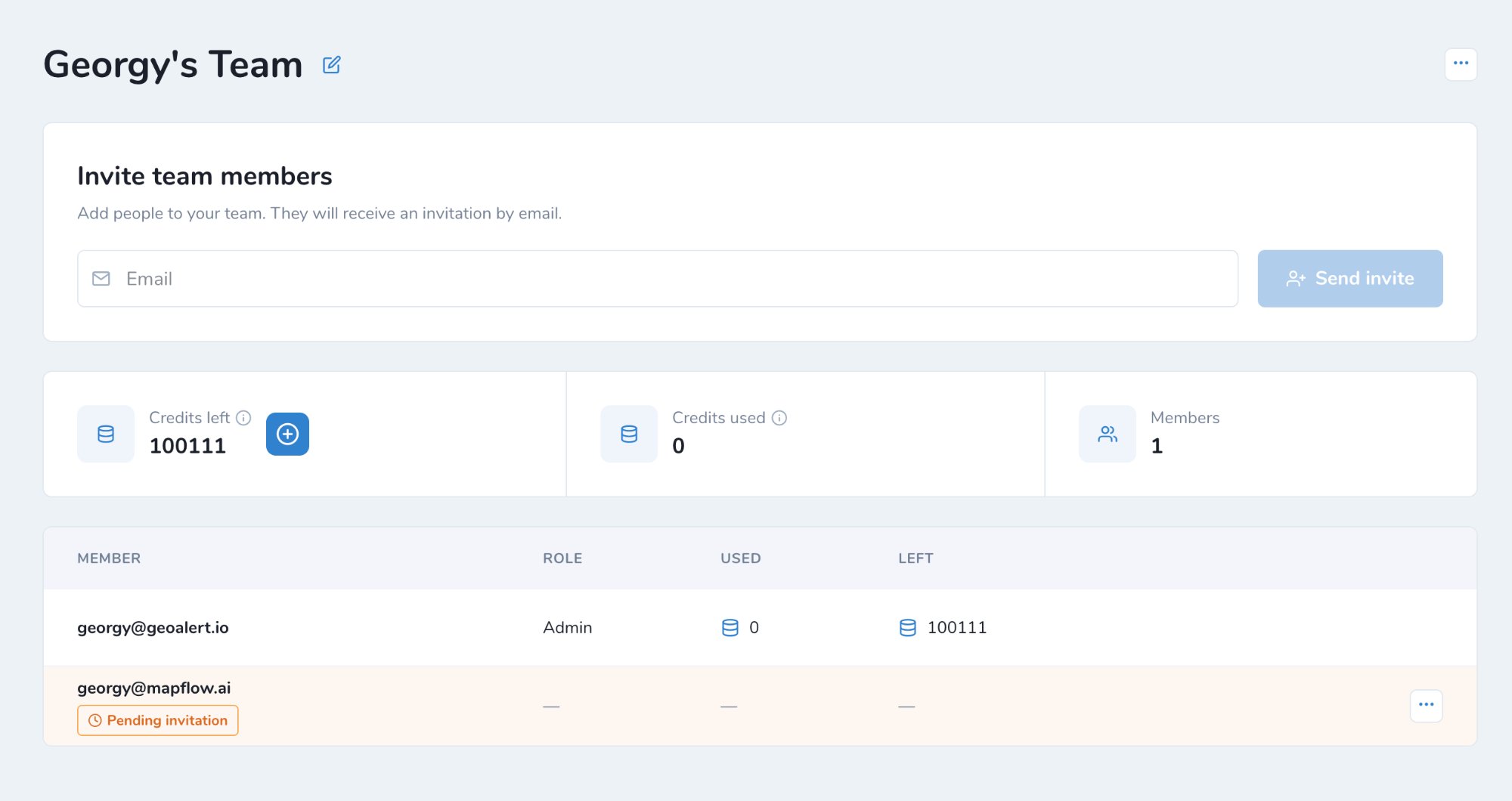
Enter the user’s email in Invite team members.
Click Send invite. The user receives the invitation by email.
Until the user accepts it, they are shown in the members list as Pending invitation.
Nota
If the user is not registered at Mapflow yet, they can join the Team after signing up.
Join a Team
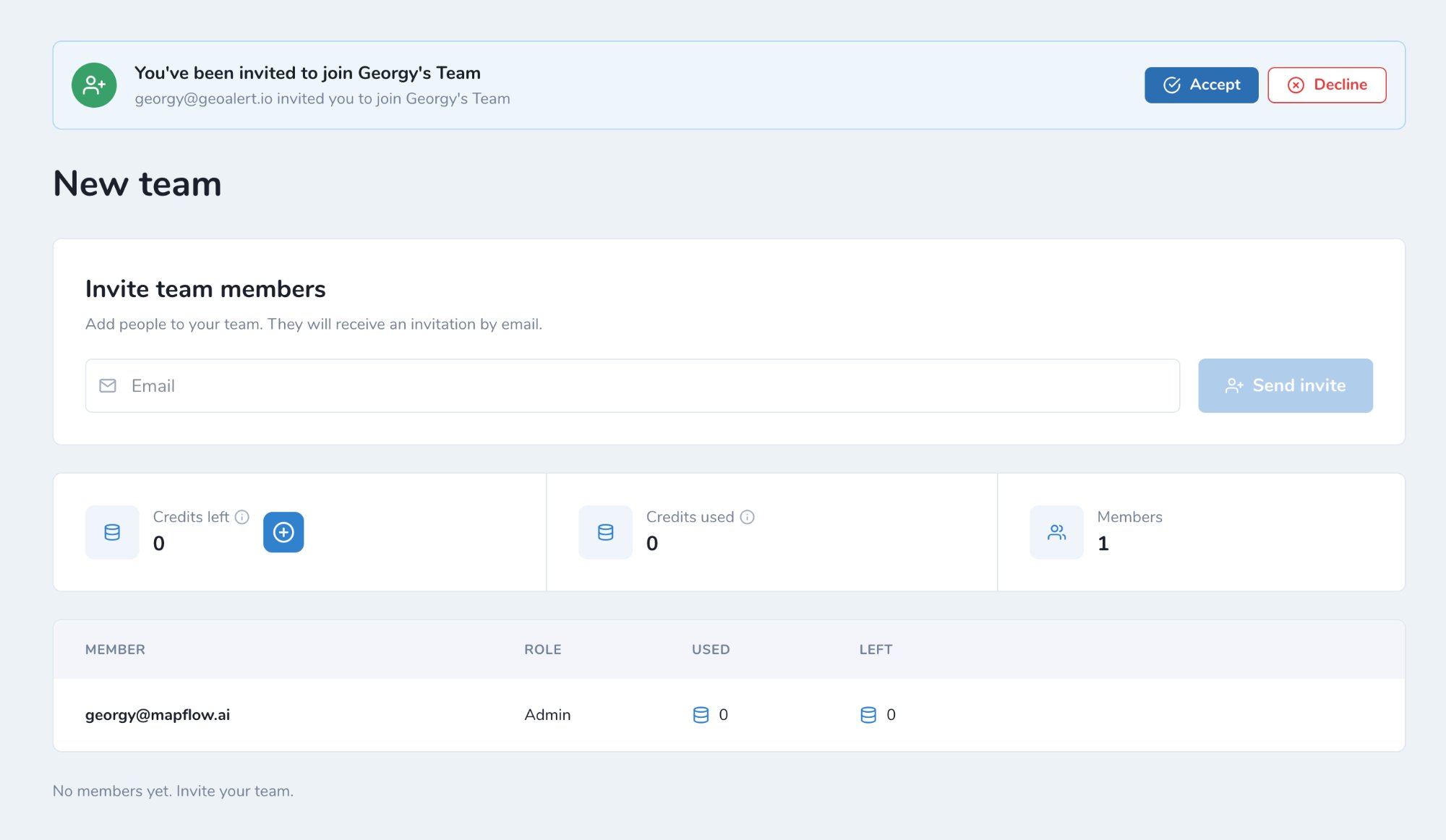
The invited user sees the invitation at the top of the Team page.
Click Accept to join the Team, or Decline to reject the invitation.
After joining the Team:
You spend the Team’s credits.
Your personal balance stays untouched.
You can’t create your own Team as long as you stay in this one.
Manage Team balance
The Admin manages the balance of the whole Team:
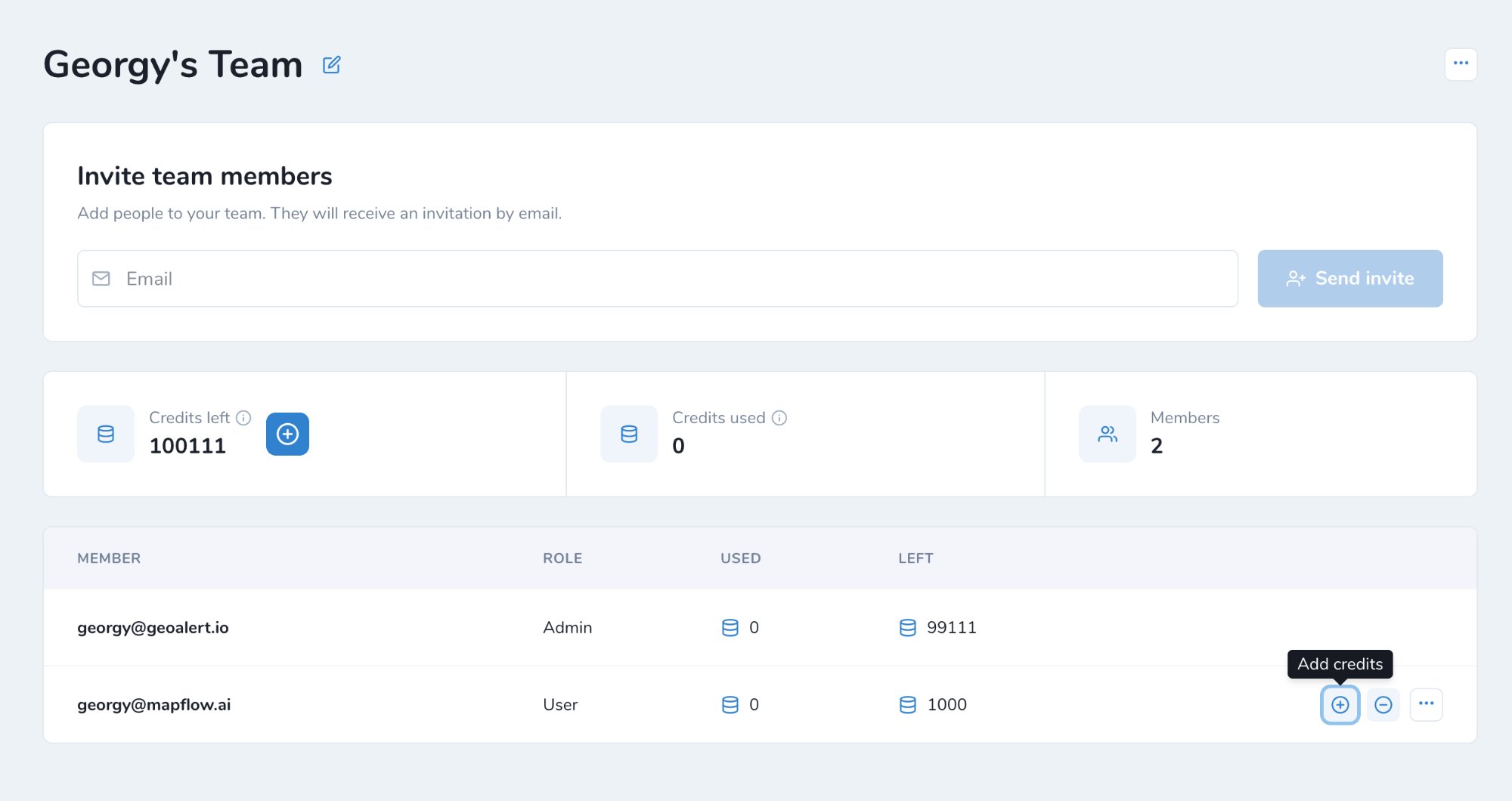
Add credits (+) – move credits from the Admin’s balance to a user.
Withdraw credits (-) – take credits back from a user to the Admin’s balance.
At the top of the page you can see:
Credits left – credits remaining in the Team. Click + to top up the Team balance.
Credits used – credits spent by the Team.
Members – number of Team members.
The members list shows each member’s role, credits Used and credits Left.
Both your Team balance and personal balance are displayed in the header.
Nota
If your Team account is switched to area-based billing, the only difference is that the balance is managed in sq. km.
Compartir proyectos en el equipo
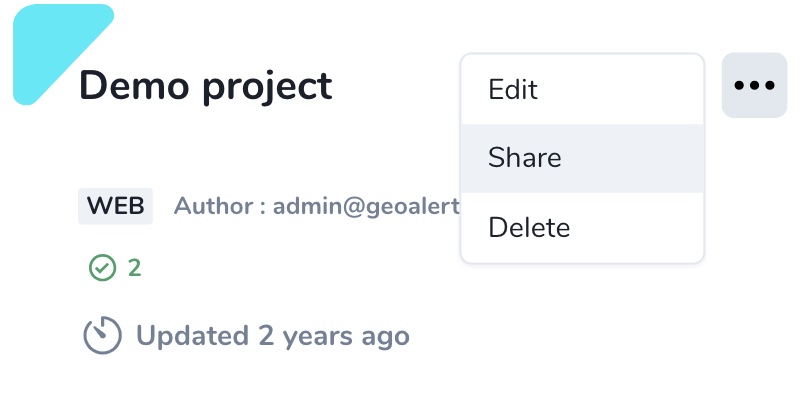
Puede compartir su proyecto con cualquier miembro del equipo y asignar su función según sea necesario. Vaya a Proyectos. Haga clic en el ícono del menú de puntos en una tarjeta de proyecto: Compartir.
Seleccione a sus compañeros de trabajo o active «Cualquier persona del equipo» si desea compartir con todos ellos.
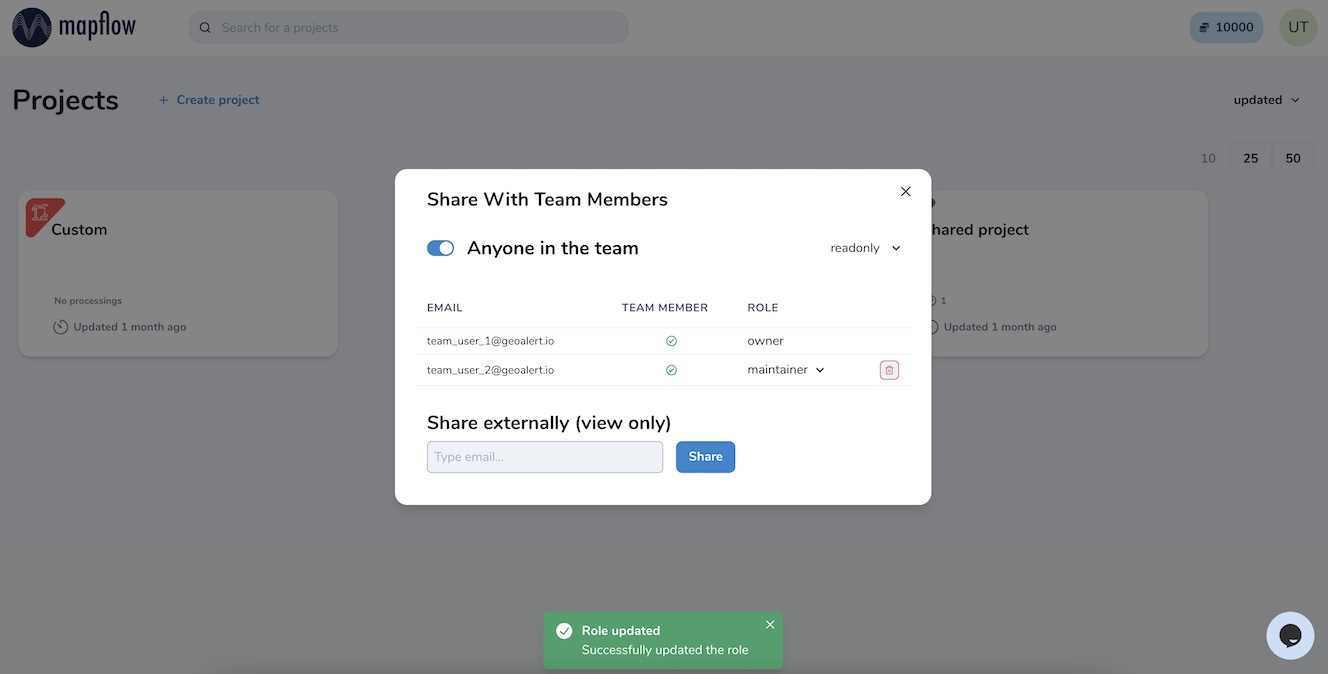
Hay cuatro tipos de roles de usuario del proyecto que se pueden asignar a sus compañeros de trabajo:
solo lectura: puede ver el historial del proyecto y los resultados.
colaborador – puede ejecutar los flujos de trabajo en el proyecto
mantenedor: puede ejecutar y editar los flujos de trabajo y compartir proyectos con los usuarios (hasta el rol de mantenedor)
propietario – plenos derechos para editar todos los roles en el proyecto
Tus colaboradores verán los nuevos proyectos compartidos en su panel y los utilizarán según el rol asignado.
Nota
También puede compartir su proyecto con cualquier usuario fuera de su equipo para obtener acceso de solo lectura. Vaya al Proyecto - Compartir e ingrese el correo electrónico del usuario de Mapflow existente. Si el nuevo usuario no está registrado en Mapflow.ai, invítelo a registrarse primero.